
SlideShare Slide Downloader
Download high-resolution SlideShare slide images individually or as a complete ZIP archive.
Need sample URLs to test? View quick examples
How to Download SlideShare Slide Images & ZIP Archives
Sometimes you only need a single infographic, diagram, or chart from a presentation rather than the entire deck. Our slide downloader lets you preview every slide in high resolution and export individual images or batch ZIPs.

1. Analyze Presentation
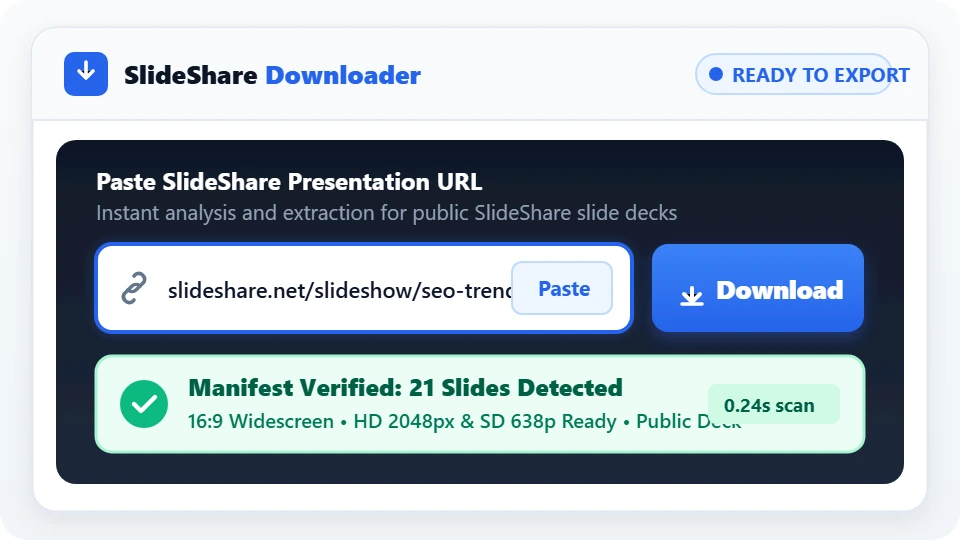
Paste the SlideShare URL into the input field above and click Download to scan the presentation manifest.
2. Browse Slide Gallery
Scroll through the numbered slide gallery. Every slide is displayed with its sequence index and responsive preview.
3. Export Images or ZIP
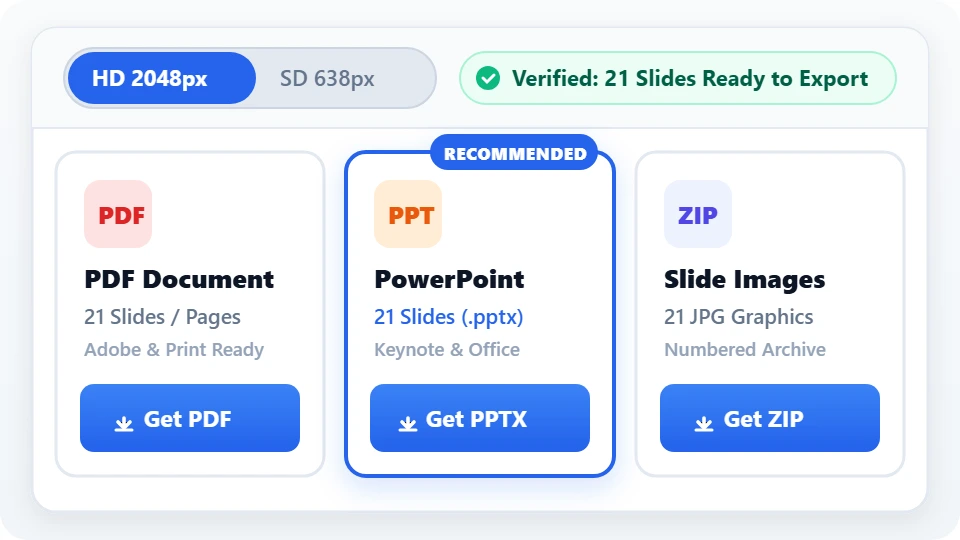
Click Download on any specific slide card to save that JPEG, or click Download ZIP to save all slides in one organized package.
Image Resolution Breakdown: SD (638px) vs. HD (2048px)
SlideShare stores slide graphics across multiple resolution tiers on its content delivery network.
| Quality Tier | Pixel Width | File Size per Slide | Best Used For |
|---|---|---|---|
| Standard (SD) | 638 pixels | ~25 KB – 60 KB | Fast mobile viewing, low bandwidth connections, quick visual reference |
| High Definition (HD) | 2048 pixels | ~120 KB – 350 KB | High-resolution displays, printing, technical charts, detailed diagrams |
Academic Citations & Author Attribution
SlideShare presentations are created by independent professionals, researchers, educators, and organizations. When using individual slide images, charts, or infographics in your academic papers, student projects, or blog posts, always provide proper attribution to the original author and cite the presentation URL in accordance with fair use standards.
Frequently Asked Questions About Slide Image Downloads
Answers regarding file formatting, zero-padded numbering, and mobile ZIP unzipping.
How are files named inside the ZIP archive?
Files are named sequentially using zero-padded numbers (for example: slide-01.jpg, slide-02.jpg, …, slide-21.jpg). This ensures your operating system sorts them in the exact presentation order automatically.
What format are the slide images saved in?
All slide images are saved as standard JPEG (.jpg) files, ensuring maximum compatibility across web browsers, photo viewers, and graphic design tools.
Can I extract images on iOS or Android?
Yes. Mobile browsers allow you to download individual slide images directly to your photo gallery. On modern iOS and Android devices, downloaded ZIP files can be uncompressed natively in the Files app.
Can I download just a single slide instead of the whole presentation?
Yes. In the slide gallery preview, every slide card includes a direct “Download” button allowing you to save only the specific slide image you need without downloading the entire presentation.
Related SlideShare Conversion Engines
Need your presentation in a different format? Explore our complementary export tools.
SlideShare to PPT Downloader
Converts slide decks into rasterized Microsoft PowerPoint (.pptx) files for offline presenting and custom lecture annotations.
SlideShare to PDF Converter
Combines public slides into lightweight, vector-clean PDF documents ideal for printing, iPad reading, and academic handouts.
Need individual high-resolution graphics, charts, or infographics from an online presentation? Our high-performance slideshare slide downloader allows you to extract every single slide frame as an uncompressed, sequential JPG image or download the complete slide carousel in a neatly packaged ZIP archive.